Total Business Solutions from Profile
Welcome to Profile Technology Services Ltd.
No matter what industry your business lies in, with increasingly demanding and global marketplaces, you will need effective business management and IT systems to enable you to remain competitive and profitable. Profile can help you.

35+ years of service
-
Successful growth
-
Assured success

Services
Profile has the experience and expertise to provide a total business solution that meets your demands and works to the best of its ability. We have commitment and dedication to providing the very best service to all of our customers.
From scoping to installation, training and support, our award-winning SystemCare team are here for you every step of the way. You will benefit from the guidance of a dedicated, professional Account Manager with a personal understanding of your business operations and procedures, to ensure you are getting the most business value out of your solution.

Software Solutions
Your business management solution is a critical part of your organisation; you can boost productivity, reduce costs and improve customer service. As your business grows and processes become more complex, you need to adopt a system that has the power to support your business ambitions and uncover new opportunities.

Hardware Solutions
Keeping your business solution up-to-date is critical to the future success of your company. As a one-stop-shop for hardware and software support, we provide reliable maintenance and efficient recovery. With Profile, you will benefit from the support of a dedicated, experienced professional with the knowledge to build and uphold a robust infrastructure, suitable to your individual requirements.

Services & Support
Our award-winning support services are designed to protect both your business software application and network infrastructure. Our aim is to work as your partner to provide you with a reliable, secure, business solution. We provide excellent customer service & support, whilst providing you with effective advice so that you can get the most business value out of your IT solution.
Industries
As you would expect, with such a large customer base, Profile has worked with companies in a wide range of industries and has provided many of them with total business solutions specifically designed for those particular industries. Sometimes these solutions are based upon ready-made software, often customised for the individual company, sometimes involving complete systems or sub systems.
Whatever your market sector, it is likely that we have more than one solution to put forward to you for your consideration. You will see elsewhere the details of the software brands that we install for our customers and below we list just some of the industries in which Profile has specialists, expertise, experience and solutions.







Product Portfolio





"Profile do a superb job and our business would not function without their continued support and expertise. Profile are always there for us and nothing is too much trouble. They always give their best to find solutions to our business needs."


Action Needed: Microsoft Ending Support for Server 2016
What is happening?
Windows Server 2016 is nearing its end of Support. Microsoft have announced that, as of January 2027, extended support for Server 2016 will be ending. After this date, there will no longer be security updates, feature updates, bug fixes or technical support from Microsoft.
What this means for you:
- No Technical Support: Microsoft will no longer help with any Server 2016 issues.
- No Security Updates: Your system will be more vulnerable to malware and viruses.
- No Feature Updates: You will not receive any new features or improvements.
- Pegasus Opera 3: No longer supported on Server 2016.
What can you do?
Replacing or upgrading your server is no small task as it can affect applications, backups and business continuity. Starting to plan now allows you to:
- Assess which servers and applications still run on Server 2016.
- Understand if you wish to replace with an on-premise server or move to the cloud.
- Consider if a hybrid option with a cloud backup might be appropriate.
- Plan properly and avoid rushed decisions.
- Reduce disruption for users and customers.
- Ensure you avoid cyber risk and maintain compliance
How can Profile help?
Profile will help your organisation assess, plan and manage the transition to a new supported environment:
- Review your server and plan the migration.
- Implement and support on-premise, cloud or hybrid infrastructures.
- Backup and security planning.
- Assist minimising disruption.
Need assistance?
Please contact us on 08000 195101 or email sales@profile.co.uk to book your FREE Server 2016 Readiness Review and we can help you transition smoothly and ensure your systems remain secure and compliant.
– The Profile Team

How Healthy Is Your IT Network?
IT problems often start long before they become obvious. Slow performance, security gaps, ageing equipment and network issues can all affect productivity — sometimes without you realising it.
Our FREE IT Health Check gives you a straightforward review of your current IT environment, helping identify potential issues, risks and opportunities for improvement.

– The Profile Team
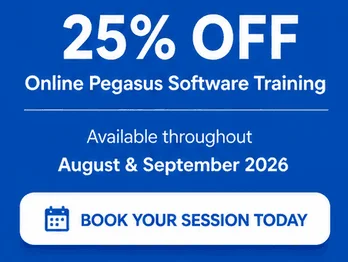
BACK TO SCHOOL – Invest in your team’s knowledge
Ready to work smarter? Brush up on your skills – save 25% on training from now until 30th September. Find out more about our offer:

– The Profile Team