Hints & Tips

Hints & Tips for Opera 3

htaug 1

You Can Add External Program Files or Application Shortcuts to Your Favourites Menu…

Did you know you can add external program files or application shortcuts directly into your Opera 3 Favourites menu?

If you regularly use external files (like Excel reports) alongside Opera 3, you can make life easier by opening them straight from within Opera 3.

Keep all your essential files just one click away inside Opera 3!

Anything you add to your Favourites is user specific.

How to add files to your favourites 

  • Right-click any Opera 3 menu heading (e.g. Supply Chain Management).
  • Select ‘Add New Application Shortcut to Favourites’.
htaug 2
  • In the form that appears:
       – Use the ellipsis (…) button to navigate to your file.
htaug 3

   – By default, Opera looks for applications, but if you want to link a file (like an Excel report), change the dropdown to ‘All Files (*.*)‘.

htaug 4
  • Select the file you wish to add.
  • Choose a Group Name or type a new one.
  • (Optional) Change the file’s display name.
  • (Optional) Select an alternative icon (otherwise Opera 3 will use the standard icon).
htaug 5

Example below:

htaug 6
  • Click OK – your shortcut will now appear in the Favourites menu.

Using Your Shortcut

  • To open your file: simply click it from the Favourites menu.
  • To remove it: right-click the icon and select ‘Remove’.
htaug 7
Our support team is here to help you set this up if needed.

 Watch out for our next in the series.

 – The Profile Team

Read now

Hints & Tips for Opera 3

search

With Opera 3’s Extended Searching, you can easily refine your searches using multiple keywords, helping you quickly pinpoint the exact records you need — whether it’s stock items, customers, or suppliers.

Our goal is to help you get the most out of Opera 3 with quick, actionable tips that are easy to implement and instantly useful.

 You Can Search Multiple Text Strings in Opera…

Finding exactly what you need in Opera just got easier with Extended Searching.

Example: Searching for LED Bulbs

Let’s say you want to find all your “LED” type “Bulbs” in your stock file.

  1. Go to Stock Processing.
  2. Press Ctrl+F or click the Search icon in the toolbar.
  3. Enter bulb into the search box and hit return.
search 1

✔️ You’ll get all stock items with “bulb” in the description — great!

search 2

❌ But what if you only want LED bulbs?

Here’s the trick:

  • LED might be stored in Search Ref 1, not in the description.
  • To narrow the search, enter bulb LED (or vice versa) in the search box.

Now you’ll only see LED-type bulbs — exactly what you’re looking for.

search 3
search 4

How to Enable Extended Searching

 This feature can be activated in your User Preferences — simply check the box for “Extended Search” to turn it on.

search 5

Bonus: It Works Across the System

 This powerful search method isn’t limited to stock items — it also works in:

  • Sales & Purchase Orders
  • Reference fields when buying or selling items
  • Sales and Purchase Ledgers

Another Example:

Need to find suppliers with “Motors” in the name and based in “London”?

  • 1.  Enter: Motors London
  • 2. In the Advanced button menu, add Address Line 4 to your search field
search 6

Your results will now match both criteria!

Give it a try and save time across multiple modules in Opera.Need help setting it up? Just get in touch!

Watch out for our next in the series.

 – The Profile Team

Read now

Hints & Tips for Opera 3

ht 2b

In this edition, we’re delighted to share a simple yet powerful feature that many users overlook — but once discovered, it can make a real difference to your day-to-day efficiency.

Our goal is to help you get the most out of Opera 3 with quick, actionable tips that are easy to implement and immediately useful.

Didyouknow            You can access targeted Help instantly in Opera… 

Let’s say that you’re working in Sales Ledger > Terms for instance, and you’re unsure about a particular field….


HT_1b.png  

Simply press the F1 Function key on your keyboard and – voila!   Help appears instantly, tailored to the screen you’re on.
Did you know


This is called Context Sensitive Help and it’s available across every form in Opera.

No need to search through manuals or menus — just press F1 and get the exact guidance you need.

Watch out for our next in the series.

 – The Profile Team

Read now

Hints & Tips for Opera 3

Welcome to another edition of Hints & Tips for Opera 3.  In this edition, we’re delighted to share a valuable tip that we hope you’ll find both beneficial and easy to implement.

Customise Grid Forms

e shot did you know

Did you know you can Customise Grid Forms to suit your processing requirements?

Grid Forms are available throughout Opera 3, and in most modules.

How It Works

A typical Grid Form, and for this example, is the Sales Ledger > Processing > (F12) View, as below: –

ht 1a

Let’s say, as a user, you only need to view the DateTypeRef 1, and Value columns—everything else just adds clutter.

How to Hide Unnecessary Columns

To clean up your view:

  1. Right-click on the header of a column you’d like to hide.
  2. This will highlight the column and display a menu.

     3. Select Hide Column(s)—and just like that, the column disappears

ht 2a
ht 3a

If you want to hide more than one column in one go… simply hold the Ctrl key down while at the same time Left mouse click each column….

ht 4a

…then, to bring up the option menu, Right click any of those highlighted column headings and select the Hide option once more…

ht 5a

Additional Column Options

ht 6a

       From the same menu, you can also:

       Unhide columns

       Pick which columns to display 

       Reset the layout to default settings

Rearranging Columns

 Want to change the order of columns? For instance, to move the Type column beside Value:

  • Simply click and hold the Type column header
  • Drag it to the desired location and release

This drag-and-drop functionality also works in other areas like the SOP and POP Processing Transaction Grids.

ht 7a

Remembering Your Chosen Selection

By default, Opera may not remember your customised view after closing the form. To ensure your layout is saved:

ht 8a

          Go to Preferences

          Tick the box for Remember form positions and sizes

          Click OK, then log back into Opera

Want to reset an individual form’s settings back to the default?  While viewing the form, use the following option in the Toolbar.

ht 9a

To reset all forms back to default, go back to Preferences and click the Reset All button.

Watch out for our next in the series.

 – The Profile Team

Read now

Hints & Tips for Opera 3

Welcome to another edition of Hints & Tips for Opera 3.  In this edition, we’re delighted to share a valuable tip that we hope you’ll find both beneficial and easy to implement.

Find Document Function

e shot did you know

Functionality Overview: The Find Document Function is a powerful tool designed to enhance efficiency when locating and processing documents in the SOP (Sales Order Processing) and POP (Purchase Order Processing) modules.

By leveraging this feature, you can streamline tasks such as progressing an invoice to a credit note without unnecessary steps

Quick Access: The F8 Find Document shortcut bypasses extra navigation, improving workflow speed.

How It Works

Let’s say you want to find a previously posted Invoice document and progress it to a Credit Note document, for instance.

Enter SOP Processing

ht 1

Use the Find Document feature (via Action > Find Document F8 or directly press F8).

ht 2

The Find Document form will appear

ht 3

Enter the Document that you want to find, which in our case is an invoice

ht 4

Enter the Invoice document number range and click Display…

ht 5

…and voila, Opera will immediately take you to the customer, the Invoice document and the Credit option ready for you to Progress the Invoice.

Summary

The Find Document Function significantly reduces the time and effort required to locate and process documents. By incorporating shortcuts like F8, you can optimise your workflow, ensuring tasks are completed swiftly and accurately. Whether you’re progressing invoices, editing purchase orders, or handling other documents, this tool simplifies the process from start to finish.

Watch out for our next in the series.

Read now

Hints & Tips for Opera 3

Hints

Welcome to our Pegasus Opera 3 Hints & Tips Page!

Discover how to make the most of your Pegasus Opera 3 software with our collection of helpful hints and tips. Whether you’re a seasoned user or just getting started, these ideas will help you streamline your processes, save time, and get the best performance from your software.

Explore a variety of tips, categorized by different aspects of the software—from financial management to detailed reporting, user customisation, and beyond. We’re here to help you make the most of your Opera 3 experience.

We’ll be updating these tips regularly, so don’t forget to bookmark this page and check back often for the latest insights!

Want to stay up to date? Join our mailing list to receive updates straight to your inbox. Simply click here

Send Copy Sales Invoice & Autofill Current Year

Copy Opera Grid Forms to Excel

The Auto Clear Function

Find Document Function

Read now

Hints & Tips for Opera 3

profile logo 2

Hints & Tips for Opera 3

Welcome to the first of many Hints & Tips for Opera 3 to help enhance you and your colleagues’ efficiency while using the software. We really hope you find this email both beneficial and helpful. Please feel free to share it with your relevant team members.

did you know

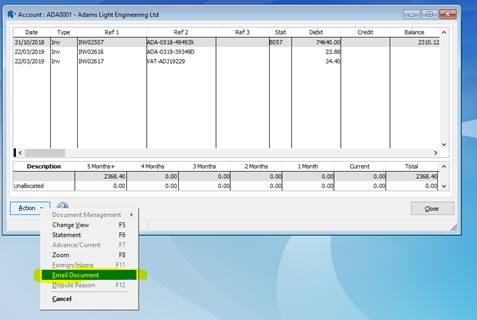
  1. You can send a copy sales invoice with one simple click…

  Go to the customer’s account view, highlight the desired invoice then right click, or select Action, and email document.
SL Account
SL email document
Hints and Tips
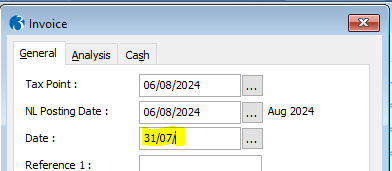
2. Opera autofill’s the current year for you…….
In a date field, enter the day and month as normal, but leave the year blank, as follows:
SL Invoice date
Then use the Tab [key] or click in the next field and the current year 2024 will be auto populated for you.
SL invoice date autofill
We hope this helps. Look out for more useful hints and tips coming soon.
– The Profile Team
Read now
Scroll to Top